Why Does an App Act Weird After a Big Phone OS Update?
A phone can feel different overnight after a major operating system update. An app that opened quickly yesterday may now show a blank screen, ask for permission again, sign you out, or put buttons in unfamiliar places. That does not automatically mean your phone is broken—or that the app has stopped working. Often, the phone’s new software and the app’s existing version are still adjusting to each other.

This matters for mobile-first users in the Philippines, where people often rely on Android phones for quick tasks between work, school, errands, and family responsibilities. A slow connection, limited storage, or an older handset can make a small compatibility issue more noticeable. Understanding what changed can help you choose the right fix without wasting data, repeating steps, or installing risky downloads.
What Changes When Your Phone Gets a Major OS Update?
An operating system update changes the software that manages your phone’s core functions: how apps launch, how they use memory, how notifications appear, and how they access features such as the camera, location, and files. The app itself may not have changed, but the rules around it may have.
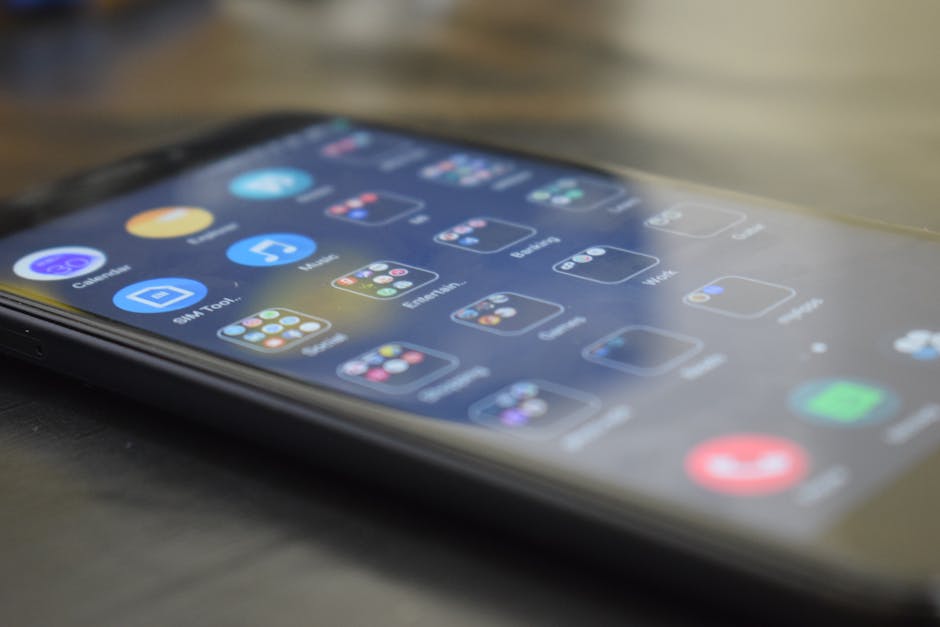
That can expose a mismatch between the app and the updated system. Developers test app releases against supported operating system versions, but there can be a gap before an app update is ready or reaches every device. This is one reason to check the update app version after your phone updates, especially if the app worked normally before.
Common signs of an app compatibility problem include:
- The app closes, freezes, or takes much longer to open.
- Parts of the screen look blank, overlap, or do not respond to taps.
- You are signed out or asked to review permissions again.
- Notifications arrive late, or their settings appear to have changed.
- A feature that used to work now shows an error or does not load.
One unusual moment right after an update may be temporary. Repeated crashes or the same error message each time deserve a closer look. Note the exact wording of any message; “Unable to connect” and “This version is no longer supported” point to different problems.
Why the App May Need Time to Catch Up
Permissions and privacy settings can reset
Major operating system updates sometimes change how permissions are presented or managed. An app may need you to allow notifications, photos, or another feature again. Check the permission the app actually needs rather than enabling everything automatically. If a feature depends on a permission you denied, the app may not behave as expected.
Older app files may not work smoothly with the new system
Your phone keeps app files, settings, and temporary data to make repeat visits faster. After an OS update, some cached files may no longer match the app’s current behavior. Clearing an app’s cache can help with loading issues, but clearing its storage or data is more disruptive: it may remove local settings and sign you out. Before doing that, make sure you know how to access your account again.
Performance can feel different on a lower-spec phone
A new operating system may use more storage or memory than the previous version. On a low- to mid-range Android phone, that can leave less room for apps to run smoothly—particularly if many apps are open or the phone is nearly full. The app may appear to be the problem when the underlying issue is limited free space, background activity, or device load.
The app and the system may be on different release schedules
Operating system updates and app updates do not always arrive at the same time. An app may need a developer release to address a new system behavior. Conversely, an app update may be available but not yet installed on your phone. Checking the official app store is a safer first step than downloading an installation file from an unfamiliar website.
Try These Checks in Order
These steps start with quick, low-risk checks. The tap counts below are approximate; menu names and layouts vary by Android version and phone brand.
- Restart the phone. Save your work, then restart the device. This can clear temporary processes left over from the OS update.
- Check for an app update. Open the official app store, search for the app, and install an update if one is available. This is usually about three or four taps, depending on your phone.
- Test your connection. Open a familiar website or another app that uses the internet. If you are on mobile data, check signal strength and your data access. If possible, compare with a trusted Wi-Fi connection.
- Check available storage. If the phone is nearly full, remove files you recognize and no longer need or move photos using a method you trust. Avoid deleting folders whose purpose you do not know.
- Review the app’s permissions. In your phone’s Settings, find the app and check whether a permission needed for the feature is allowed. Change only what is relevant.
- Clear the cache, if appropriate. In Settings, open the app’s storage details and choose the cache option if your phone provides it. Do not select “clear data” or “clear storage” unless you understand what will be removed and can sign back in.
- Check the app’s official help or status information. If the app shows a service error, the issue may be on the provider’s side rather than your phone.
If the app still fails, note your phone model, operating system version, app version, the time the issue happened, and the exact error text. These details make a support request more useful than “the app is weird.” Avoid sharing passwords, one-time codes, or full payment details in a support message.
App Compatibility Is More Than “Does It Open?”
App compatibility includes more than whether an app launches. It also covers whether screens fit, buttons respond, content loads, and key tasks can be completed reliably on your device and system version. An app can technically open while still having a layout problem after an OS update.
For people using phones with smaller screens, familiar placement matters. If a button shifts, users may tap the wrong control, especially during a short session. A well-maintained app should aim for a consistent interface across updates, while adapting to system changes such as new permission prompts or accessibility options.
What you notice Possible cause First check App closes on launch Outdated app version, temporary system issue, or low available memory Restart the phone and check for an official app update Screen is blank or controls overlap Display scaling or app compatibility issue Check display settings and the app’s latest release information Feature cannot access photos or camera Permission changed or was denied Review the specific permission in Settings Pages load slowly or fail Weak connection, service issue, or app data problem Test another connection and check official service informationMobile-First Access in the Philippines
Many people in the Philippines use a phone as their main way to access news, services, and entertainment. That makes speed and clarity important: a user might have only a few minutes, a small data allowance, or an older phone with limited free space. If an update changes the first screen or adds extra steps, even a small delay can make a familiar task feel frustrating.
For repeat visits, direct entry points can save time. A saved bookmark or a clearly labeled link can take you to the intended page without searching through several screens. For example, people looking for BingoPlus can use the official reference at bingoplus.com/play/bingo_plus. Before signing in or entering any information, check that the address is correct and that the page is the one you meant to open.
In some cases, a website can be a useful alternative while an app issue is being investigated. It may not provide exactly the same experience or features, and it does not fix the underlying app compatibility problem. Treat it as a separate access route, and use official sources rather than links sent by unknown accounts.
Content brands such as DGM News also benefit from predictable mobile layouts. Readers often open an article, scan a few paragraphs, and leave. If an OS update changes text size or browser behavior, a page that once felt easy to read may become harder to navigate. A simple layout, clear headings, and useful links help people return without having to relearn the page.
Familiar Screens Matter During Short Sessions
People often use apps in short bursts: checking a message while commuting, reading a headline during a break, or returning to a service they used earlier. A familiar interface lets them complete the task quickly. When the operating system changes notification styles, navigation gestures, or permission prompts, the app may feel unfamiliar even if its core features remain the same.
For example, someone who regularly opens the Bingo Plus app may expect the same basic route from launch to the feature they want. If that route changes after an update, clear labels and stable entry points reduce confusion. The same principle applies to a news app, a banking app, or a utility: people should not have to hunt for the same control after every software change.
Sharing can be part of a quick visit, too. A Facebook share option should be easy to identify and should make it clear what will be shared. If the share button moves or stops responding after an OS update, check whether the app needs an update and whether the phone allows the relevant sharing action. Do not assume the problem means your account is restricted.
A Common Content Mistake: Leaving Costs Unclear
When explaining an app or a service, a common mistake is to mention access or features but say nothing about pricing, fees, or deposit amounts. That omission can leave readers guessing. If costs apply, explain them accurately using current, official information. If the details vary by service, location, payment method, or time, say so and point readers to the provider’s current terms instead of inventing a number.
This is especially important when an article refers to a service that may involve payments. Do not imply that an OS update changes prices, fees, or deposit requirements unless there is reliable evidence. Keep troubleshooting separate from financial terms, and encourage readers to confirm any payment details through read more the official app or website before proceeding.
When to Contact Support
Contact the app provider if the same problem continues after you have restarted the phone, checked the app version, and confirmed your connection. Include the details that help support reproduce the issue, but keep personal information safe.
- Phone brand and model
- Operating system version
- App version, if you can find it
- The exact error message and what you were doing when it appeared
- Whether the problem happens on Wi-Fi, mobile data, or both
If several apps are failing—not just one—the issue may be related to the phone update, available storage, or system settings. Check your phone manufacturer’s official support guidance. If only one app is affected, the app developer is usually the better contact.
The Bottom Line
An app can act strangely after a big phone update because system settings, permissions, cached files, performance demands, or app compatibility have changed. Start with the simplest checks: restart, update the app through an official store, confirm your connection, and review only the relevant permissions. Avoid risky downloads and destructive resets unless you know what they will remove.
For mobile-first users, especially those on smaller or lower-spec Android phones, bingo plus app features fast repeat visits and a familiar interface make a real difference. Clear instructions, reliable direct entry points, and accurate information help people get back to what they came to do—without turning a short session into a long troubleshooting exercise.